Integrating Your Google Classroom with Aeries
You can now connect your Google Classroom with Aeries so that your roster of students will be automatically populated in Google and grades from assignments in Google Classroom can be pushed to Aeries saving you data entry. However, you must do the following one-time setup for your classroom.
Create a Classroom or Link it if Classroom is Already Created

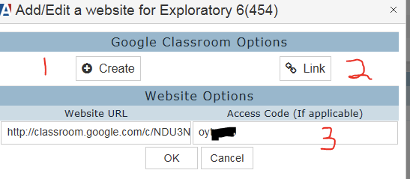
You should see something like this next window after pressing the icon to the right of your class under the Website heading.
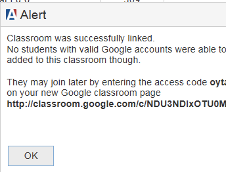
This is the message you will receive after linking.
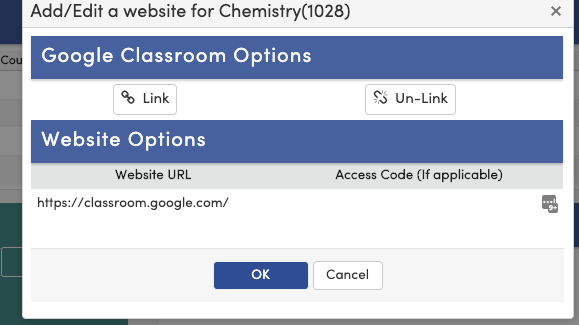
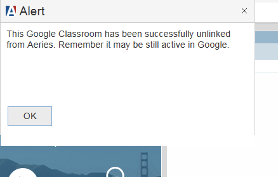
This is the message you will receive if you decide to unlink.
Make sure that your students have Aeries accounts and they are using their “…@Students.NUSD.org” Google accounts to log into Aeries (see below).
To Push Marks from Google Classroom to Aeries
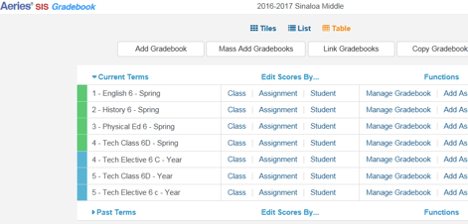
After Google Classroom is linked go to Gradebook in Aeries.
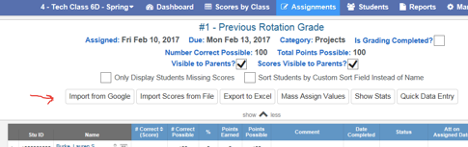
Go into the assignment and click the “show \/ more” button.

You then have an option to “Import from Google.”
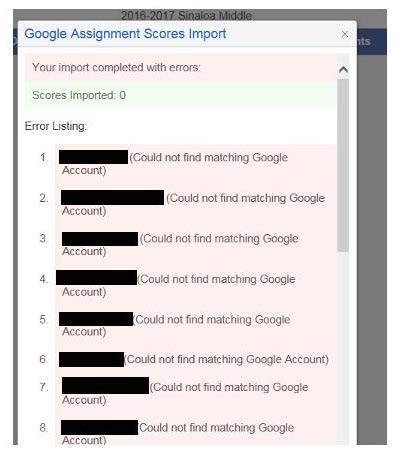
If you get errors like these “Could not find matching …” first make sure that the students have Aeries and Google accounts and that they are using their Google account as the ID for their Aeries account - They may need to change their Aeries account email address. After trying that, please report the error to Help@NUSD.org for technical support.
A Video on Aeries Integration
Here’s a video link that summarizes the above section, but be sure to make sure that your students have created Aeries accounts as noted in the following section or there may be errors.
Video Training on Aeries integration with Google Classroom:
http://fast.wistia.net/embed/iframe/tqrh9gx5g7